
How do I put my facecam above the gameplay?
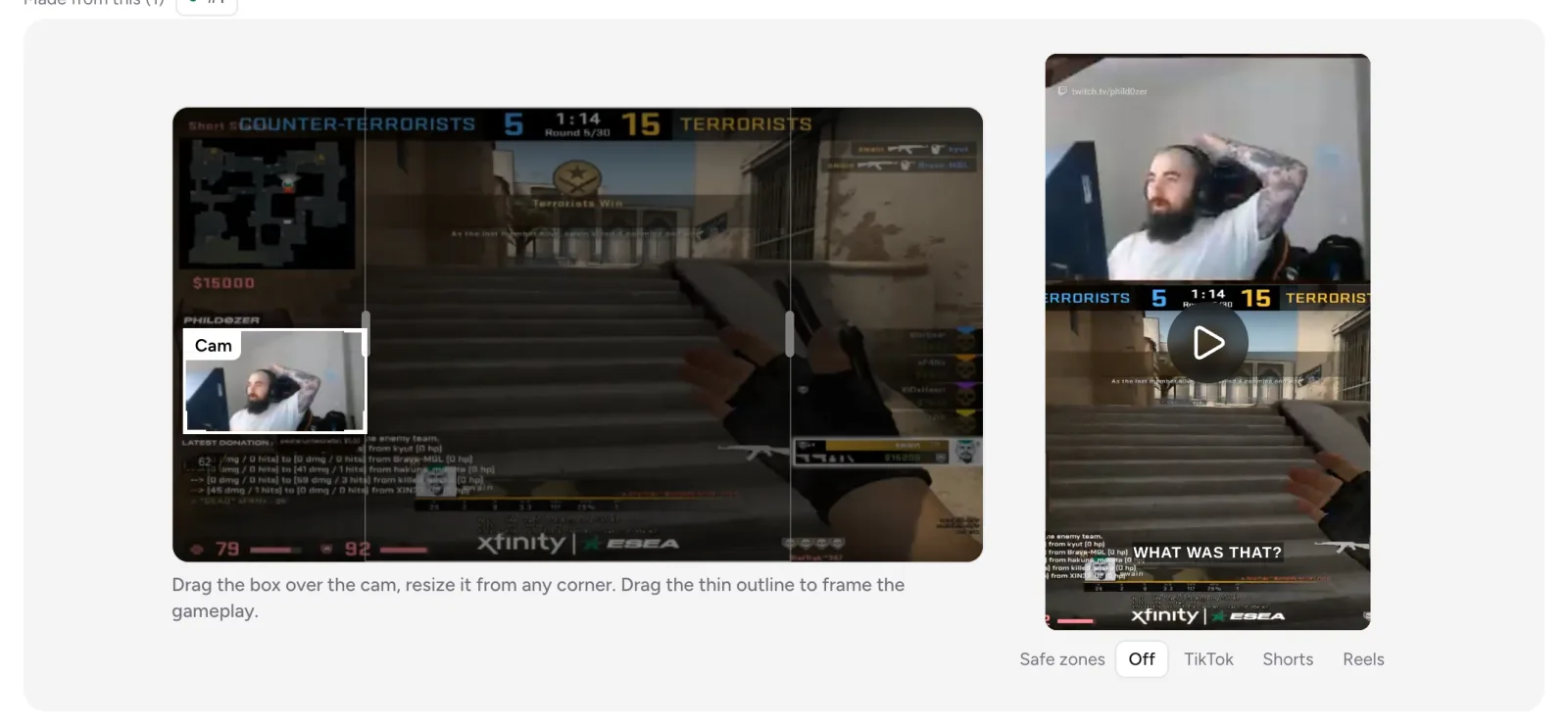
In Clipr's Short editor, choose the Cam + game layout and drag the box over your facecam. Then set Cam position to Top in the Look tab. Cam + game comes with the Starter and Creator plans.
Step by step
- Open the clip in Studio and press Make a Short. See making a Short.
- Choose Cam + game.
- On the source frame, drag the box over your cam and resize it from any corner.
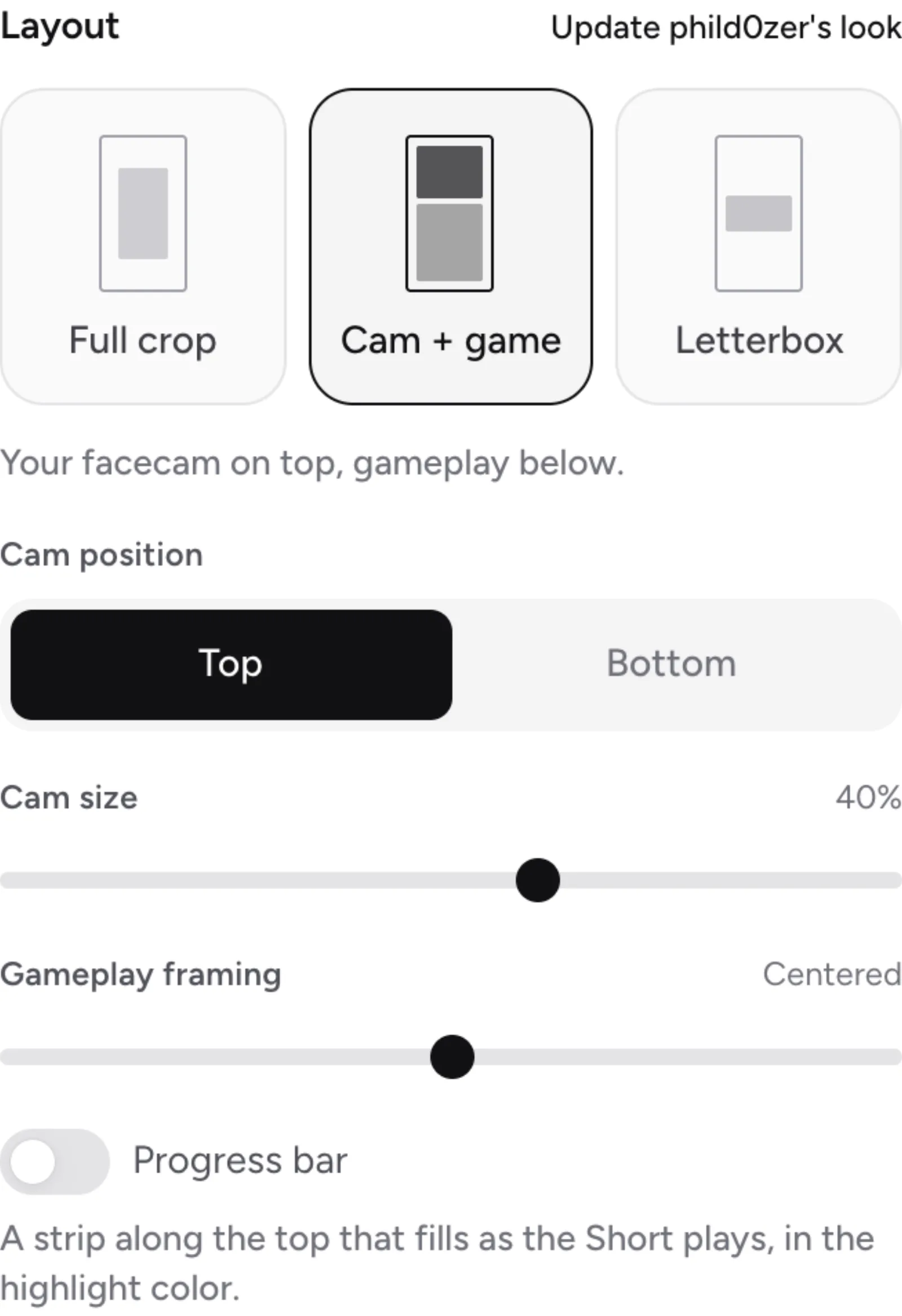
- In the Look tab, set Cam position to Top and adjust Cam size.
- Use Gameplay framing to place the game part, or select Center it.
The three layouts
- Full crop: one 9:16 crop of the clip. "The outlined part is the Short: drag it onto the action (double-click centers it)."
- Cam + game: your facecam and the gameplay stacked, cam on top or bottom.
- Letterbox.
Free includes Full crop. Starter and Creator include all three.
More questions
Can I try Cam + game on Free?
Yes, in the preview. Paid layouts show a Starter badge and the note "Shown free in the preview; exporting it comes with Starter." To export on Free, switch back to Full crop. See plans compared.
How do I move the cam box on my phone?
On phones, press Cam box above the preview to show the source, then place the box.
What is the Progress bar switch?
It's in the Look tab and turns a progress bar on or off in the Short.
Updated November 4, 2026. Still stuck? Ask on Discord or email [email protected].