
How do I fix wrong words in my captions?
Open the Words tab in Clipr's Short editor. Click a word to hear it, click it again to edit it, and press Tab to go to the next word. To fix the same word everywhere, use Find and Replace with.
Step by step
- In the editor, open the Words tab.
- Click a word to hear it, then click it again to edit it.
- Press Tab to move to the next word.
- Select × to drop a word you don't want.
To start over, select Reset.
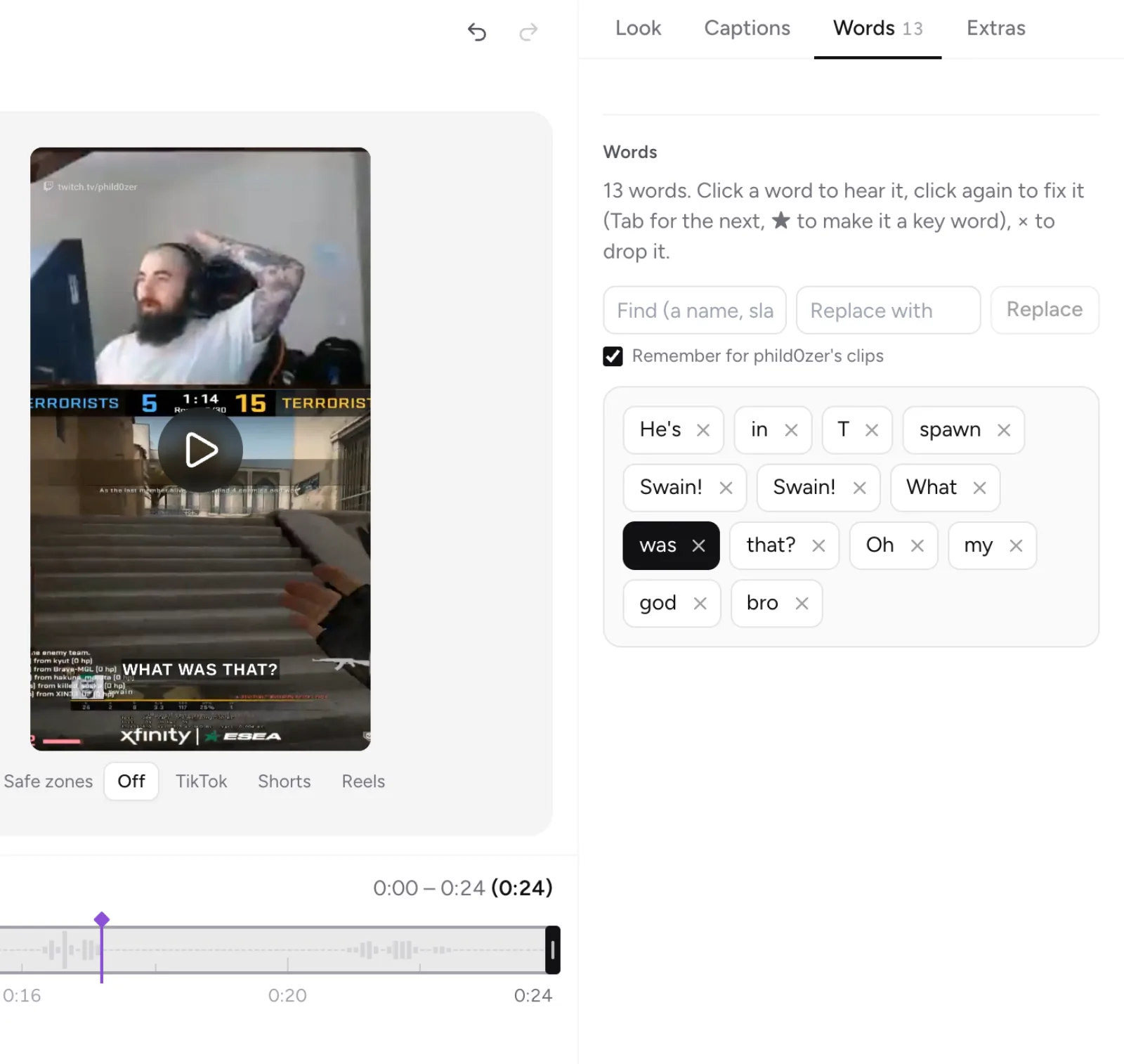
Fix a word everywhere
- Type the wrong word in Find and the right one in Replace with.
- Select Replace N to change every match.
- Tick Remember for channel's clips to keep the fix for that channel.
Remembered fixes are in the Word list (N). They apply on their own to new captions from that channel, and you'll see "Fixed N words from your list for channel." with Undo.
Key words
The ★ marks a key word. It comes with Starter and Creator.
More questions
A name comes out wrong in every clip. Can I fix it once?
Yes. Replace it once and tick Remember for channel's clips, and new captions from that channel come out fixed.
Can I pick the caption language?
No. Clipr uses the stream's language when it can, and otherwise detects it.
Updated November 4, 2026. Still stuck? Ask on Discord or email [email protected].