
How do I download my finished Short?
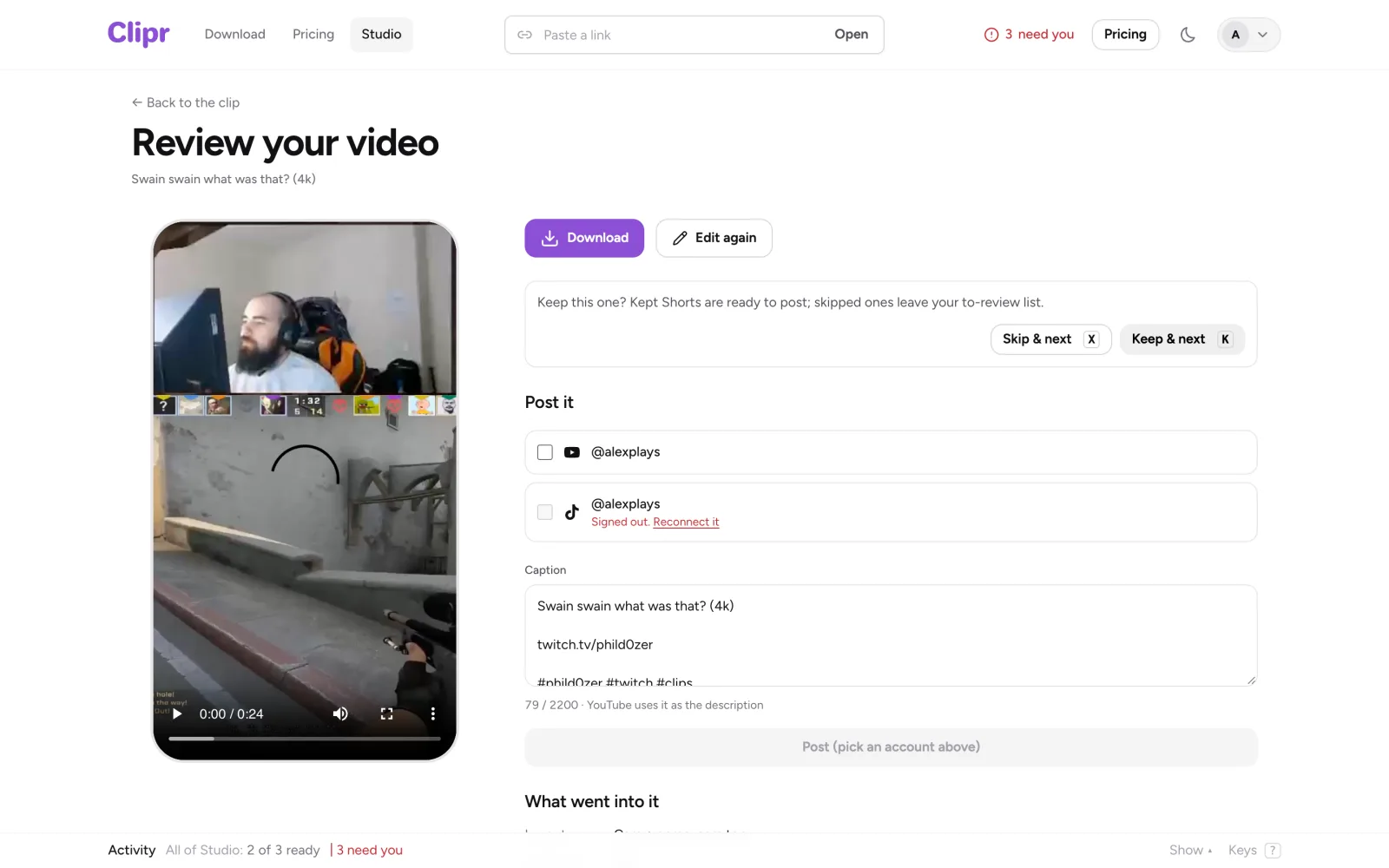
Select Make the Short in Clipr's editor. When it's done, you land on the Short's page ("Review your video"). Download saves a 1080 × 1920 MP4 at up to 60 fps.
Step by step
- In the editor, select Make the Short. The first time, confirm you have the rights with Yes, make it.
- Wait for the render. In your browser it shows "Rendering in your browser N%"; keep the tab open. On the servers it shows "Queued…" or "Rendering N%", and you can close the tab.
- On the Short's page, select Download.
Browser or server
Free Shorts render in your browser when it can. They render on Clipr's servers instead:
- on phones
- for Shorts over 90 seconds
- in browsers without the needed video support
- when pauses are removed
- when captions have no words yet
- if the browser export fails
Paid plans always render on the servers.
Free Shorts carry a small clipr.gg mark. Starter and Creator Shorts don't.
On the Short's page
- Download: the MP4.
- Captions (.srt): the caption file.
- Edit again: back to the editor.
- Delete this Short.
- Save to library: on paid plans, for a Short exported in your browser.
Your Shorts are also listed on the clip's page in Studio. To post straight to YouTube, see posting a Short.
More questions
Why does it say "Make it again here, free"?
You see it when the Short was exported in the browser on another device. Select it to make the Short again on this device, free.
It says "Processing failed".
Select Try again. If you see "A step failed; retrying automatically…", wait: Clipr retries on its own. See Short failed to render.
The button says "Add captions first".
Add captions in the Captions tab first. See adding captions.
Updated November 4, 2026. Still stuck? Ask on Discord or email [email protected].